Contents9 sections
Notes
PLaMo Translation
On 2025/05/27, Preferred Networks (PFN) released PLaMo Translation. For details, see the official blog, but briefly, PLaMo Translation is an LLM-based translation model, similar to ChatGPT.
The model is published on HuggingFace and a demo page is available. Since the model is public on HuggingFace, we can run it on our local PCs. PFN also announced a CLI for it: PLaMo Translation CLI.
There are several ways to run the model; here I introduce how to run it with LM Studio.
LM Studio
LM Studio is a GUI app that lets you run LLM models locally. Install it by downloading the installer from the download page and running it.
Download the model
After launching LM Studio, download the model. Click the magnifying-glass icon on the left to open the search screen.
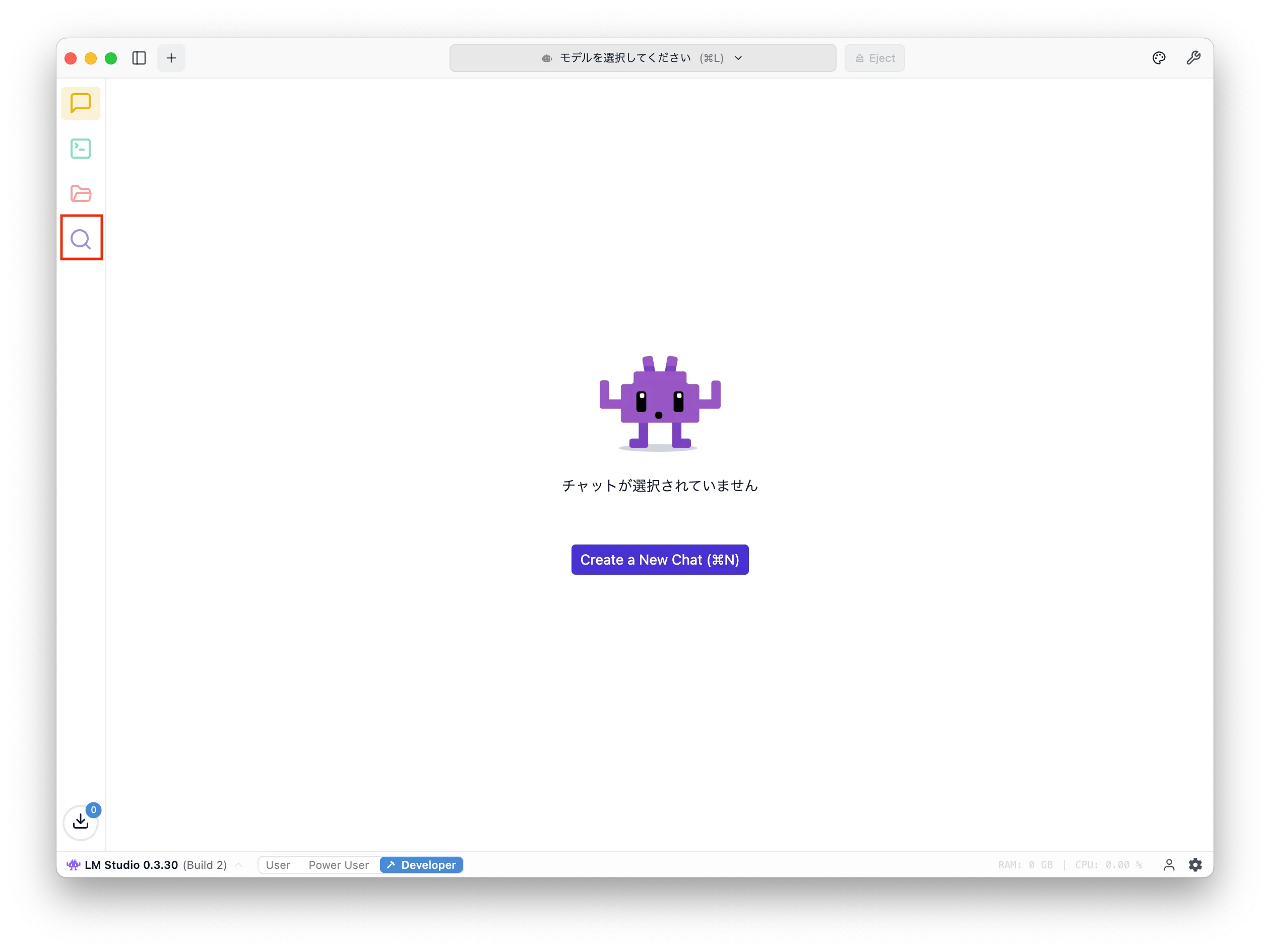
Search for "plamo translate" and you will see several models. Select the one published by mmnga and click "Download". In the screenshot it says "Use in New Chat" because the model is already downloaded.
Model settings
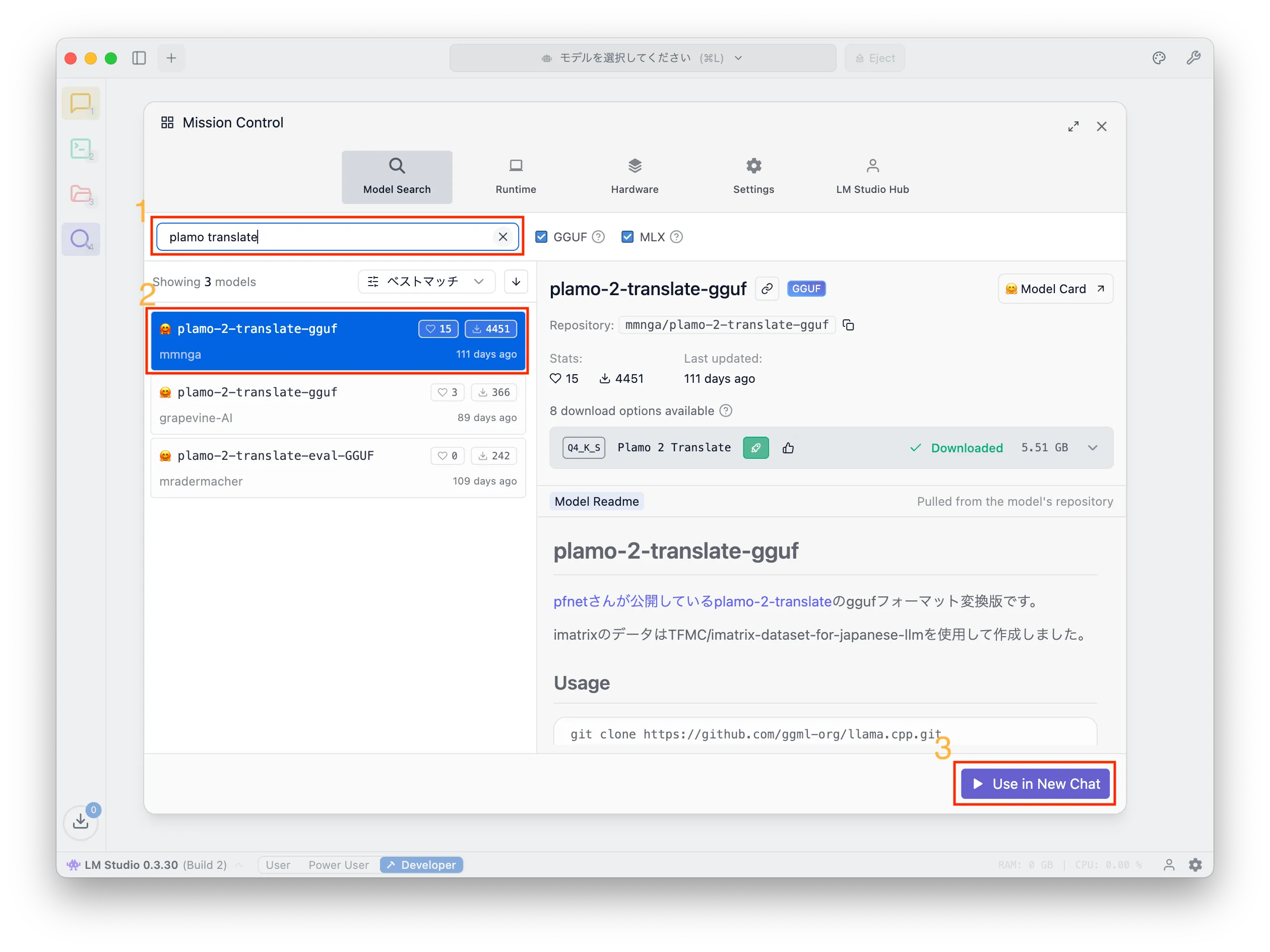
After downloading, click the folder icon on the left to open the list of downloaded models. Find the model named plamo-2-translate and click the gear icon in the Action column.
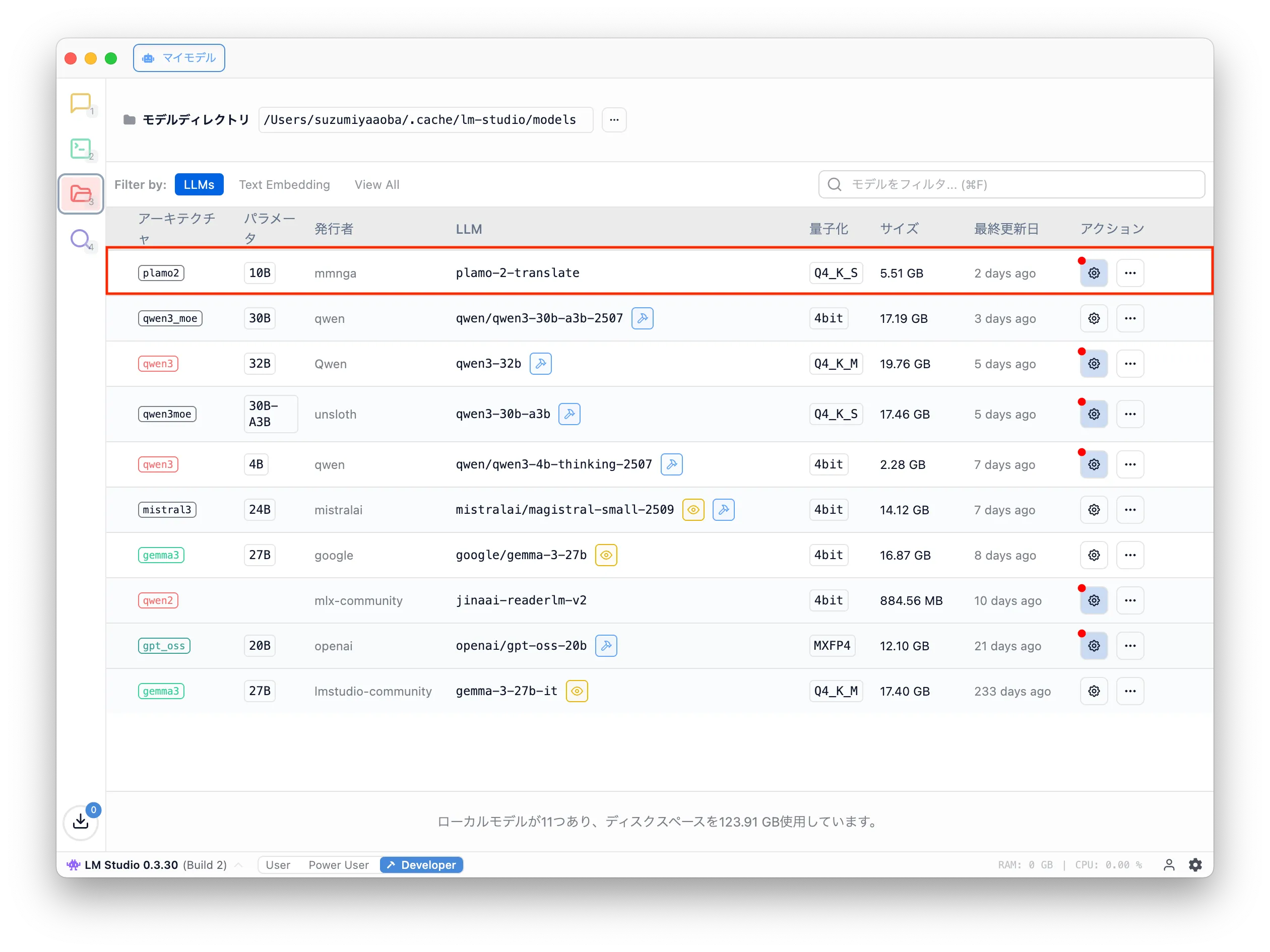
This opens the settings to edit the default parameters. To use PLaMo Translation in LM Studio, change the Prompt Template and Stop String under the Prompt tab. While writing this, I realized changing Additional Stop Strings might also work.
Prompt template
Delete all default text (Template/Jinja) and replace it with:
This is for English -> Japanese translation. For Japanese -> English, use:
Stop string
Set the stop string to:

After entering it and pressing Enter, you will see tags like in the screenshot.
Try it
Click the speech-bubble icon on the left to open the chat UI.
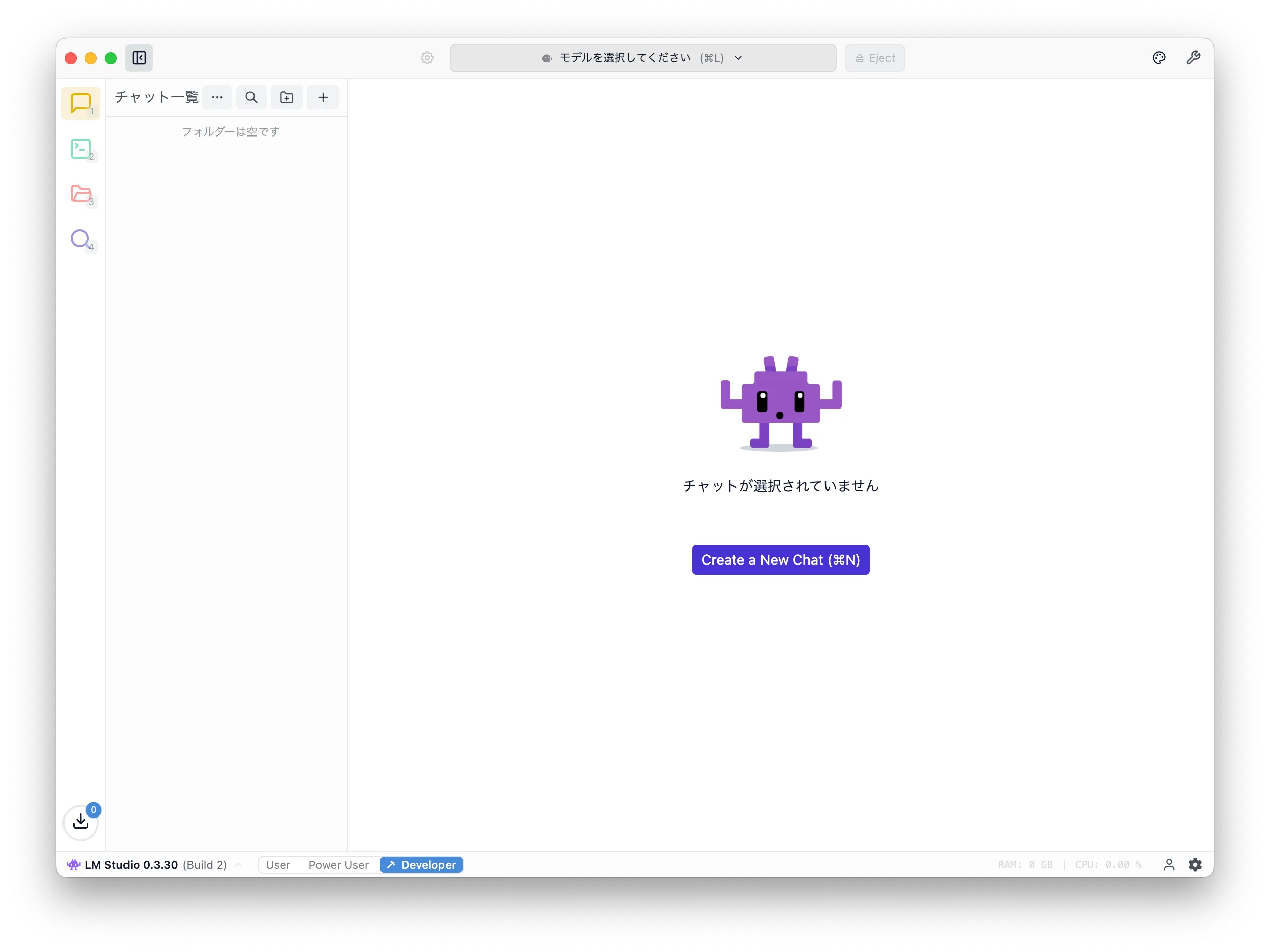
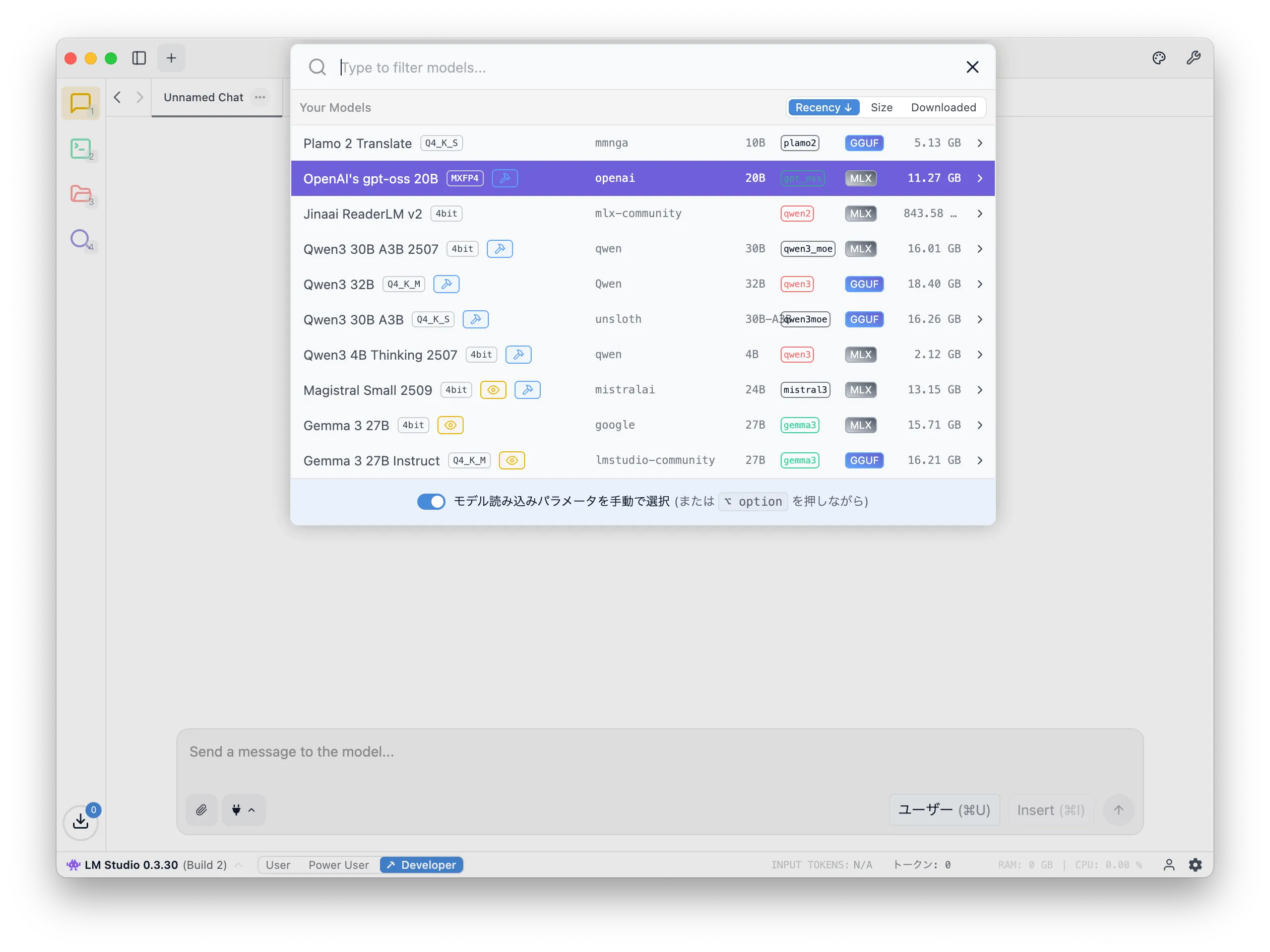
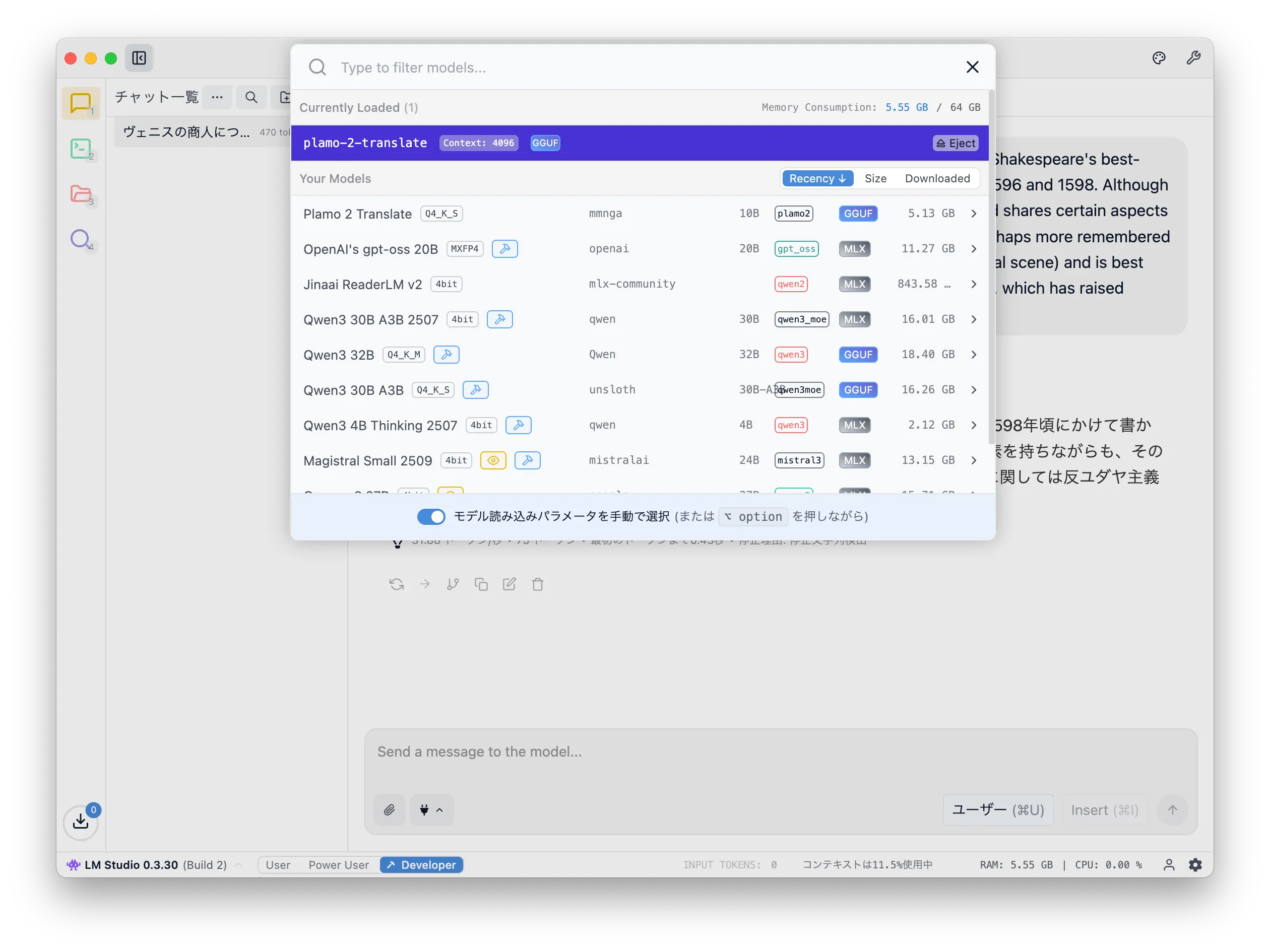
Click "Select a model" at the top and choose "Plamo 2 Translate" from the downloaded list.
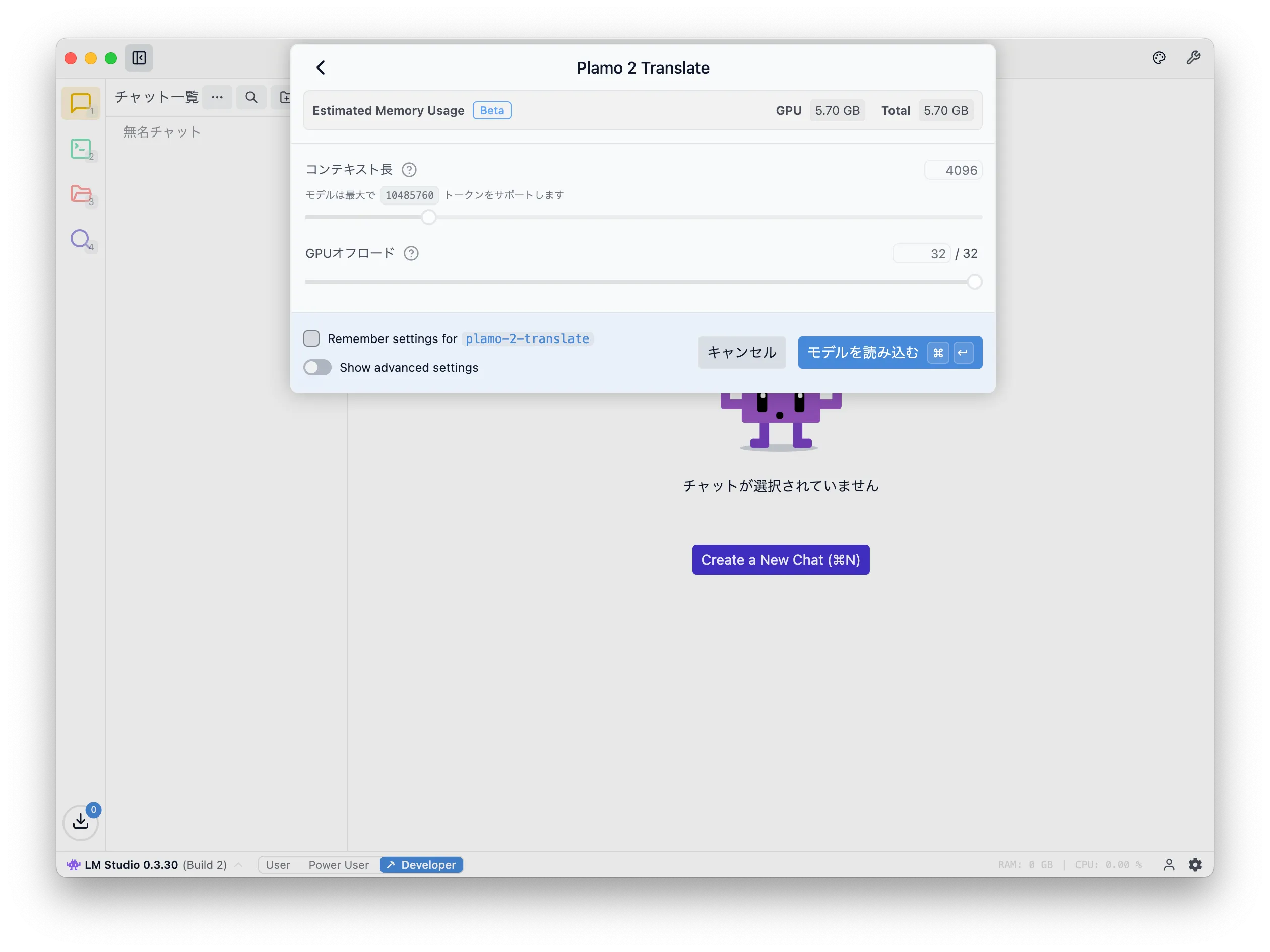
You will be prompted with some settings; leave them as default and click "Load Model".
You will see a familiar ChatGPT-like UI. Enter English and press Enter. PLaMo Translation returns the Japanese translation. In the screenshots, I used a description of Shakespeare's The Merchant of Venice.
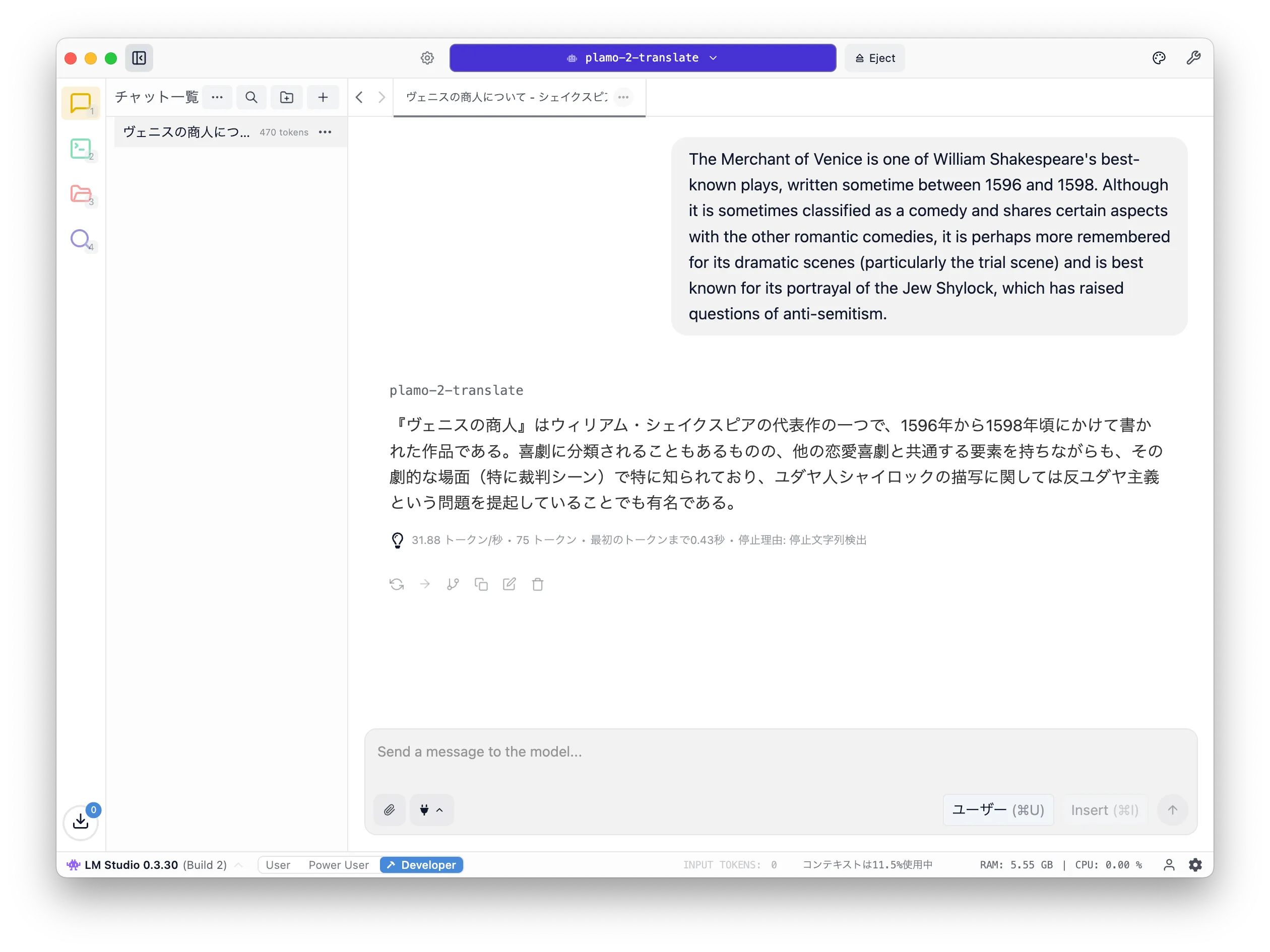

Compared to Google Translate, it seems more paraphrased, but the context is preserved, so it may be useful when you want to quickly translate large amounts of collected English information. I plan to try it for machine translation of this blog and adopt it if the quality is good enough.
Notes
Since the model is not trained for conversational use, giving translation instructions does not help.
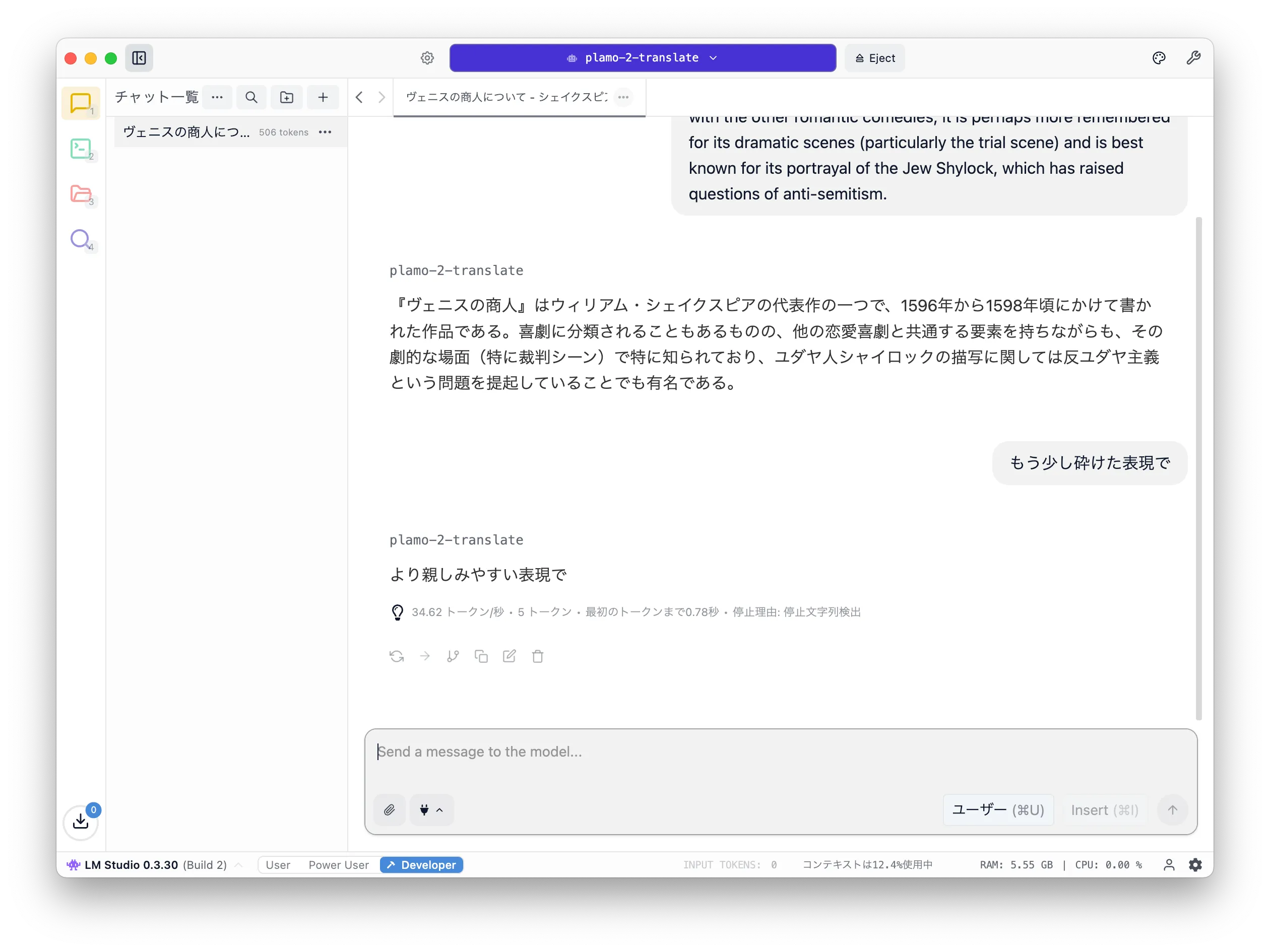
You can configure the translation direction (English -> Japanese or Japanese -> English), but it only works correctly when the input language matches that configuration.
Eject
Finally, either fully stop LM Studio or eject the model so memory is not allocated when unused.
English translation by PLaMo up to here
I fed the sections above into PLaMo Translation and tried English output as a reference.
It seems it cannot read Markdown as-is (maybe Frontmatter or the <|plamo:op|> in the text?), so for practical use you may need to parse and pass only Japanese parts, or convert to plain text to preserve context. If <|plamo:op|> is the cause, then it won't be a problem except for articles about PLaMo, but you would still need to escape it.
This should be sufficient for publishing the blog for an English-speaking audience. As shown in LM Studio, my environment gets 30–40 token/s, so it doesn't feel slow.
Conclusion
I introduced how to use PLaMo Translation with LM Studio. It's fast enough that using it locally to grasp the gist of English text feels useful. API translation services cost money, so being able to do English<->Japanese translation at this quality without extra cost is nice.
I also saw a Zenn article that published a tool to translate Markdown/epub using PLaMo Translation, so I want to build something similar.

現場で活用するためのAIエージェント実践入門
Amazon アソシエイトについて
この記事には Amazon アソシエイトのリンクが含まれています。Amazonのアソシエイトとして、SuzumiyaAoba は適格販売により収入を得ています。